Requesting items
Browse to an item
Section titled “Browse to an item”- From the home page or the Help center menu, open a category (for example Technology Services or Workplace Services).
- On the category page, browse the Support resources list. Use the Filter by control to narrow it to Requests only, Sort by Popular or A-Z, or search within the category. Switch between card and list view with the toggle at the end of the toolbar.
- Click a request card to open its form. The breadcrumb at the top (Home › category › item) always shows where you are.
Fill out the form
Section titled “Fill out the form”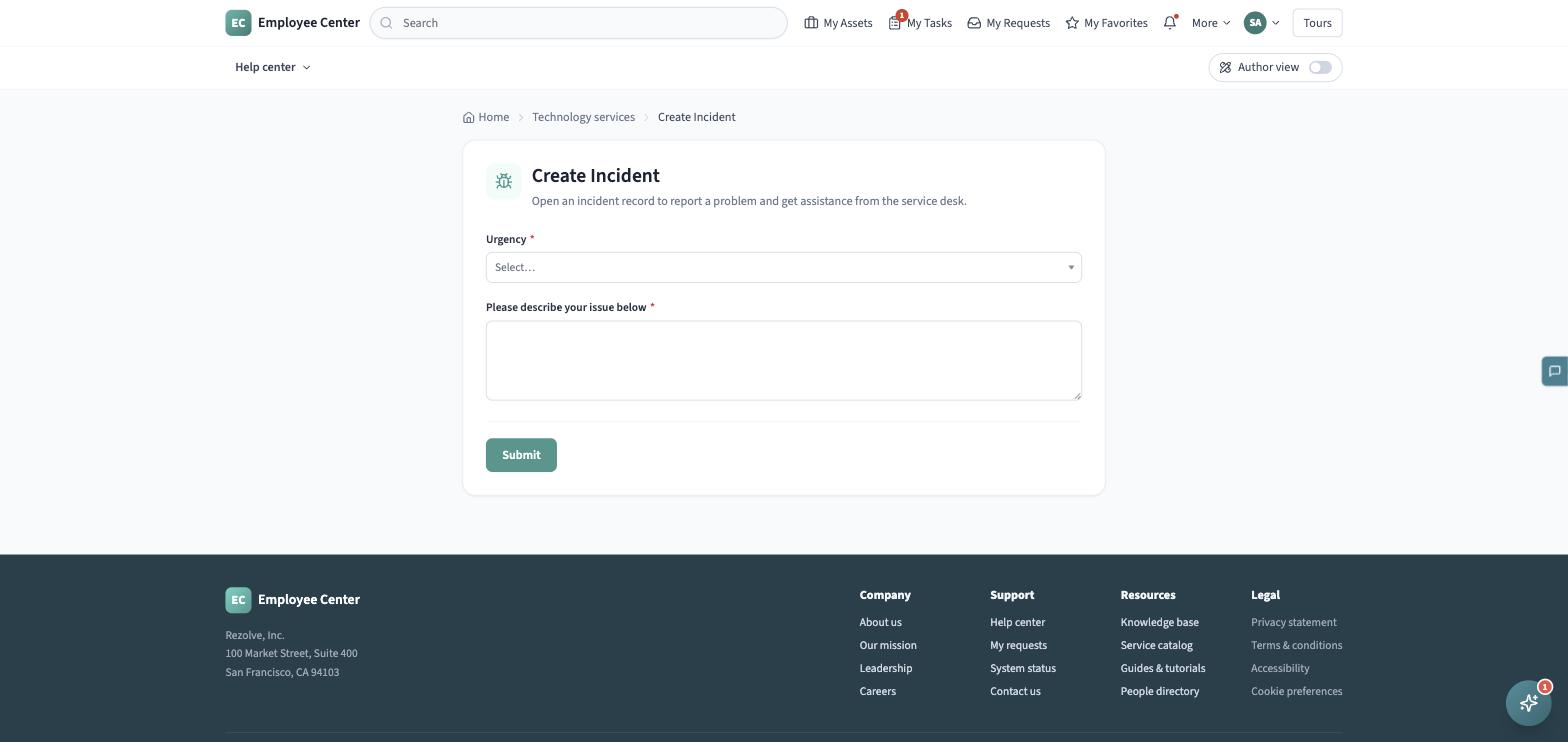
Every item’s form is built from a list of fields, and each field renders as the right kind of control for its type:
- Text and multi-line text — a single-line or multi-line box (a character limit shows if the field has one).
- Email — validated as a proper email address on submit.
- Number and currency — a numeric field (currency shows a
$prefix). - Dropdown / choice — a searchable list you type to filter.
- Yes/No, toggle, or multiple-choice — a row of buttons; click one to select it.
- Lookup (reference) — a searchable typeahead over the related records (people, locations, companies, configuration items).
- Date / date-time — a real date or date-and-time picker.
- List — an add/remove control for entering more than one value.
- Checkbox — a single yes/no opt-in.
- Attachment — a drag-and-drop area (or click to browse) for adding files.
Fields marked with a red asterisk are required. If your organization’s admin added help text to a field, you’ll see it underneath the control.
Submit
Section titled “Submit”Click Submit. If something’s missing or invalid, RezolveIT highlights every field that needs attention and shows a message asking you to fix them — nothing is sent until they’re resolved. Once it goes through, you’ll see a confirmation screen with your request’s reference number, with the option to submit another request or return to the home page.
What happens next
Section titled “What happens next”Your submitted request appears in My Requests, where you can follow its state and stage through to completion. Some requests need a manager or approver to sign off first — see Approvals for how that works from the approver’s side. A request’s progress is generally shown as a sequence of stages — requested, approval, fulfillment, delivery, and closed — and a rejected approval stops the sequence rather than moving it forward.