Source-to-Pay
Source-to-Pay (S2P) covers the procurement lifecycle: an employee’s sourcing request or purchase requisition drives a sourcing event, a purchase order, receiving, and an invoice, alongside the supplier and contract records that support the buy. This guide covers the requisition → order → receipt chain in detail; the mechanics of lists and records are shared across the whole app and covered in Working with lists and Working with records.
What it covers
Section titled “What it covers”| Area | What you do there |
|---|---|
| Sourcing | Off-catalog sourcing requests and the negotiation events (RFx) that price them — see Procure to Receive. |
| Requisitions → Orders → Receipts | The purchase requisition → purchase order → receiving-slip chain — see Procure to Receive. |
| Invoices | Matching and paying supplier invoices against orders and receipts — see Procure to Receive. |
| Procurement Cases | Buyer intake and triage for sourcing help, supplier issues, and contract or invoice questions — see Procure to Receive. |
| Suppliers | The supplier master record and its performance, contracts, orders, and invoices — see Procure to Receive. |
The home dashboard
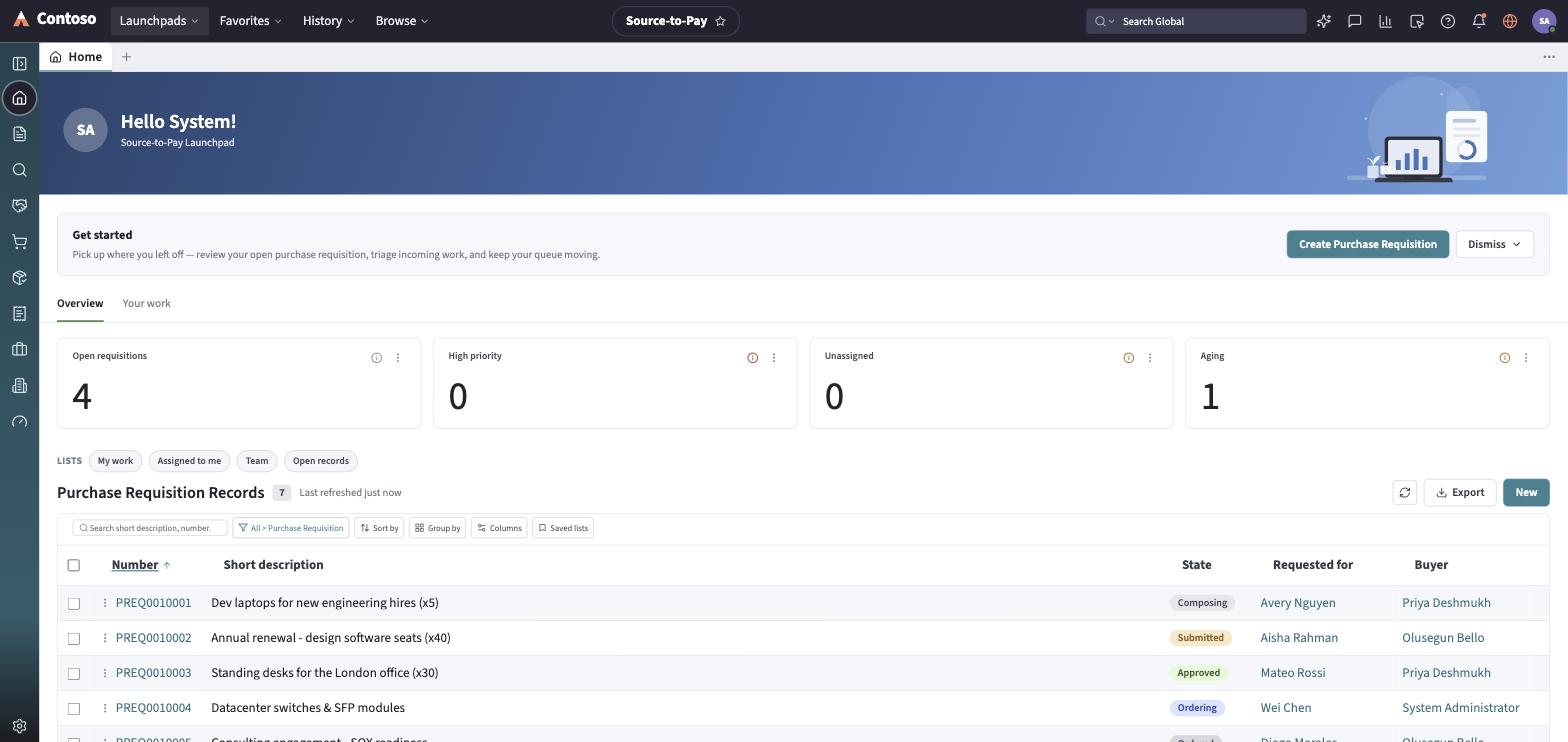
Section titled “The home dashboard”Landing on Home, the launchpad shows the shared metadata-driven dashboard scoped to purchase requisitions: four KPI cards — Open Requisitions, High Priority, Unassigned, and Aging — plus two charts, a By state donut and a By department bar, over the requisition queue.
The navigation rail
Section titled “The navigation rail”- Home — the dashboard described above.
- Requisitions — the purchase requisition list.
- Sourcing — the sourcing request list.
- Negotiations — the sourcing event (RFx) list.
- Purchase Orders — the purchase order list.
- Receipts — the receiving-slip list.
- Invoices — the invoice list.
- Spend Cases — the procurement case list.
- Suppliers — the supplier master list.
- Dashboard — a dashboard-builder view over the spend data.
The List destination also opens a picker over every S2P record type, including Contracts and Catalog / Products, which aren’t separate rail entries but are reachable there.
Every list and record you open in this launchpad follows the same toolbar and layout conventions used everywhere else in the app — that shared behavior is documented once in the launchpads/shared guides rather than repeated per module.