Working as an agent
If you work records for a living — incidents, cases, requests, changes — this page covers the three screens you’ll live in every day: the home dashboard, lists, and records.
1. The home dashboard
Section titled “1. The home dashboard”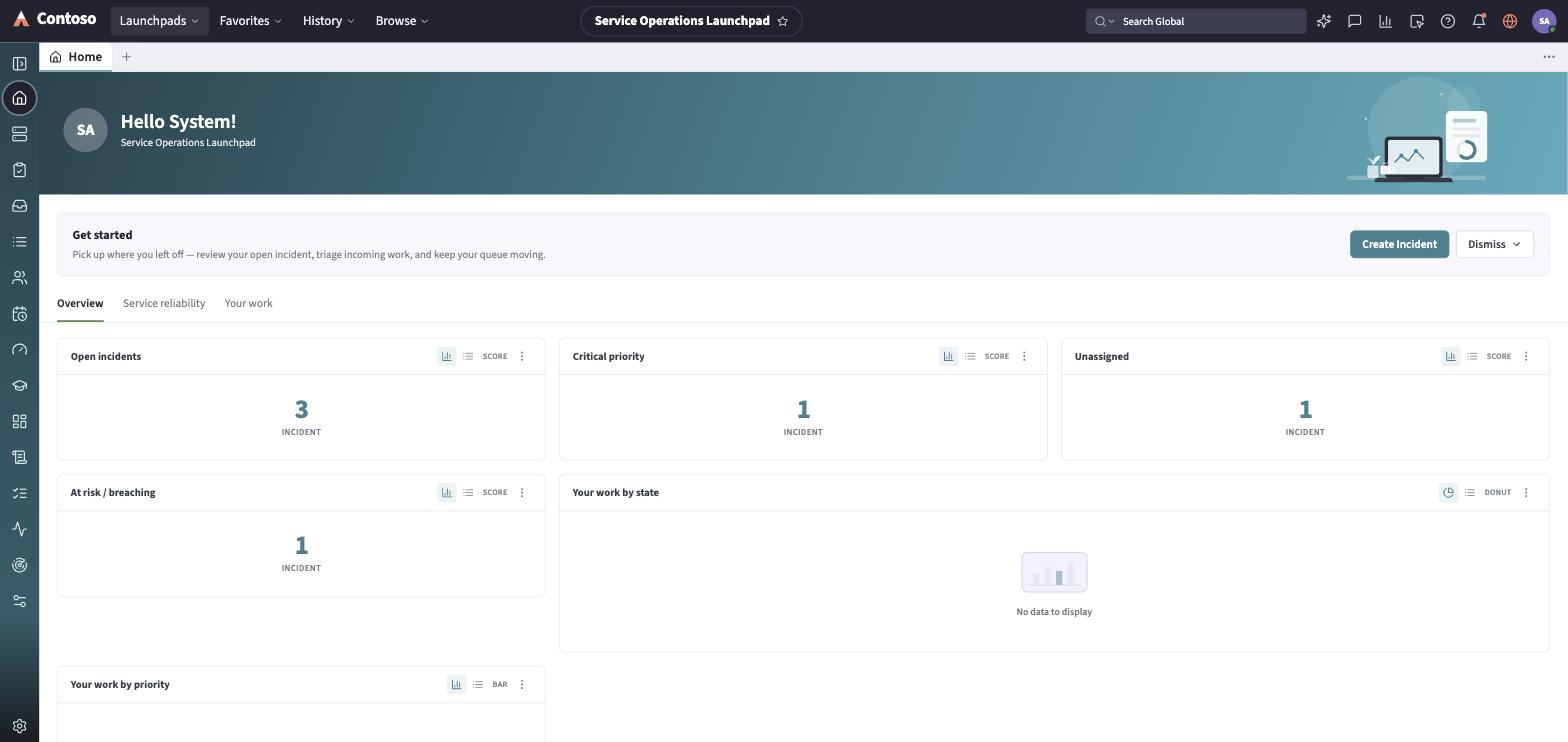
Every launchpad opens on a home dashboard:
- A greeting header with your name.
- Three tabs: Overview, Your work, and Your teams’ work.
- Overview shows KPI cards (live counts) plus a full data list with its own toolbar — refresh, filter, export, and create new.
- Your work shows summary charts (by state, by priority) plus a list scoped to records assigned to you.
- Your teams’ work shows the same kind of list, scoped to the groups you belong to.
- Click a KPI card or a chart segment to drill straight into the matching filtered list.
2. Working with lists
Section titled “2. Working with lists”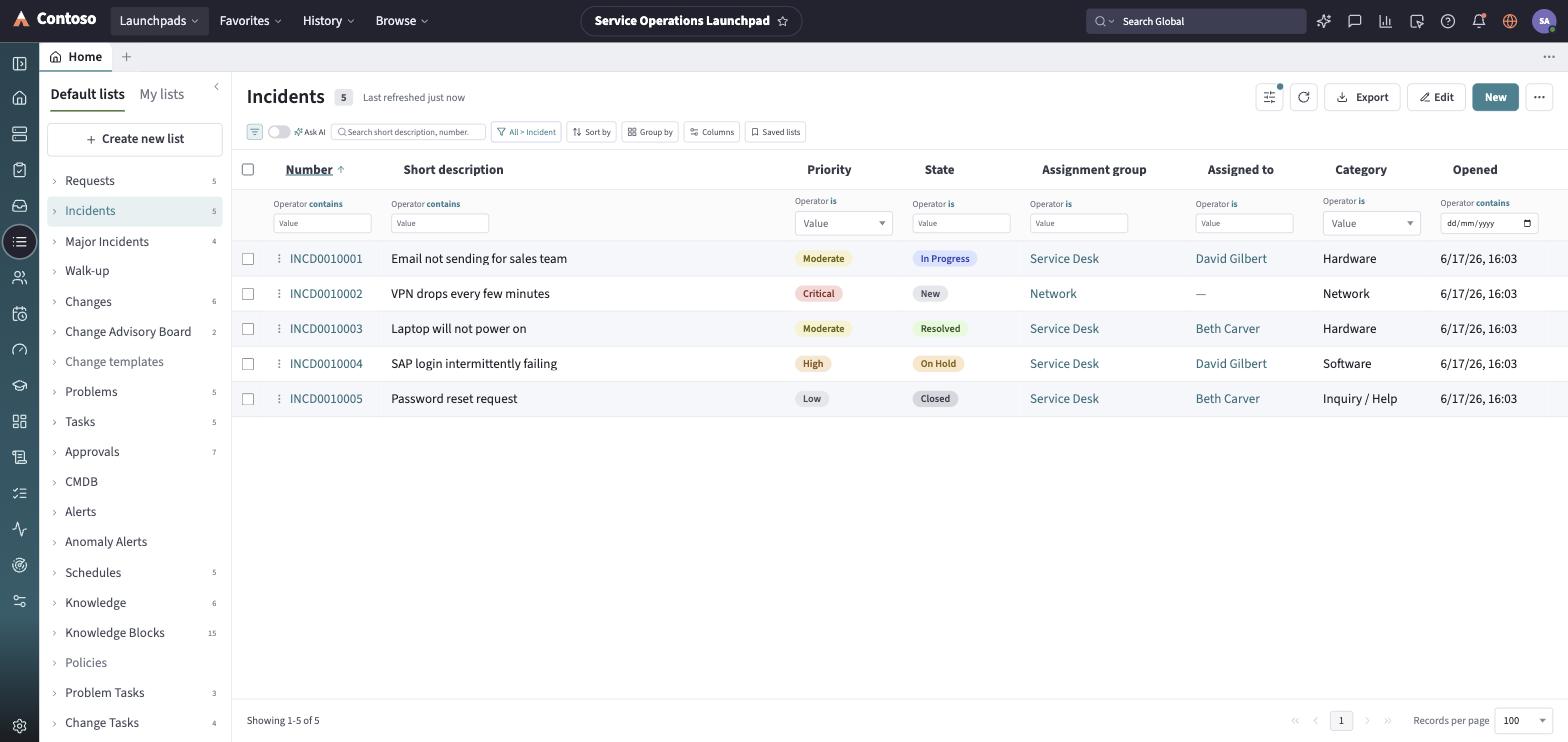
Every list works the same way regardless of what it’s a list of:
- A view picker on the left groups records under canonical views: Assigned to me, Open, Open - Unassigned, Resolved, Closed, and All. Picking one filters in place — you never navigate away.
- Filter builds a condition from a field, an operator, and a value; stack more than one condition to narrow further, and save the set as a named filter to reuse.
- Sort by orders the list by any column (or click a column header’s own sort control).
- Group by clusters rows under a shared field value, so you can scan volume and hot spots without leaving the list.
- Personalize List Columns opens an Available/Selected picker to choose and reorder which fields the list shows — personal to you, per list.
- Export opens a dialog with a File Type (Excel, CSV, JSON, or PDF) and a Delivery Type (Download now, or Email it), always respecting your current filter, sort, and columns.
- Row checkboxes plus the header checkbox select a page of rows for bulk edit — turning every editable cell in the selection into an inline editor — or a quick bulk action like Assign to me.
See Working with lists for the full reference, including how related lists embedded in a record page work identically.
3. Working with records
Section titled “3. Working with records”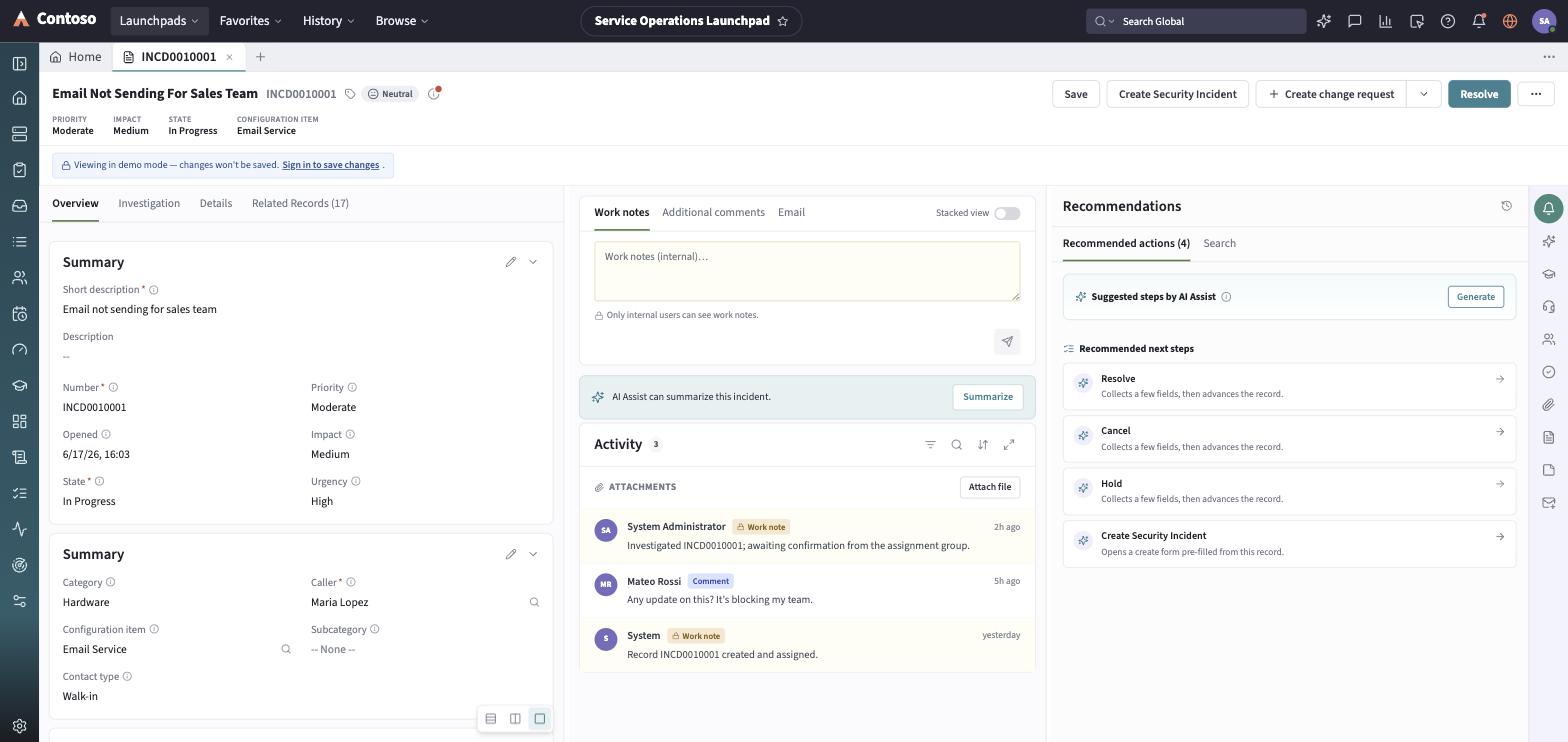
Open a record from any list by clicking its number. Every record page shares the same layout:
- A header with the record number, short description, and a row of state-dependent CTAs — the buttons on offer change with the record’s current state (an open incident might show Resolve; a resolved one shows Close and Reopen instead).
- A key-field strip with the record’s most important fields at a glance, and tabs for Overview, Details (the complete form), and Related records (some record types add their own tab, like a change request’s Change tasks).
- Inline edit — double-click an editable cell, on the record or in a list, to change it without opening the full form.
- The Activity panel — the record’s history, newest-first, with its own Filter, Search, and sort toggle. Additional comments are customer-visible; Work notes are internal only and shown with a lock icon. Compose either from the tabs at the bottom of the panel; field changes log here automatically too.
- Attachments — the strip above the compose box lets you attach a file directly; a successful upload also drops a card into the activity stream.
See Working with records for the full reference, including how child lists (like Change tasks) differ from reference lists (like affected CIs).
Next steps
Section titled “Next steps”Head to Launchpads for the module-specific guide that matches what you work — IT Service Management, Customer Service, HR Service Management, Enterprise Portfolio Management, AIOps, IT Asset Management, Security Operations, Source-to-Pay, or Configuration Management DB.